Fieldshare is excited to announce an enhanced integration with StackDX, making it even easier to keep your project documentation synchronized across both platforms.
Fieldshare users can now send documents directly from a project to the corresponding Surface Location in your corporate StackDX account.
No downloading, no re-uploading, no manual filing.
Before you start
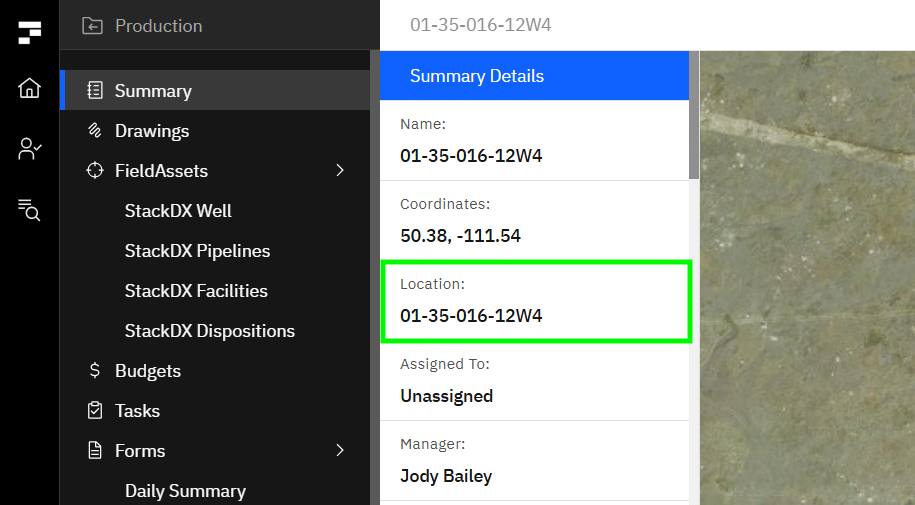
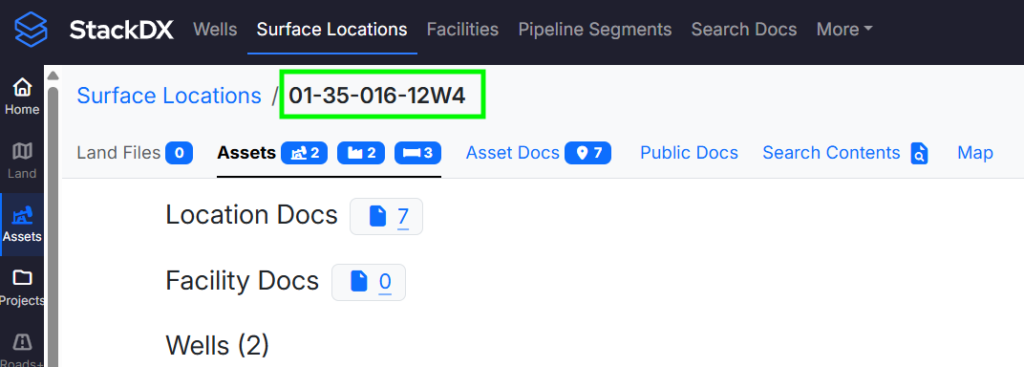
Make sure the Fieldshare project’s Location Name matches the corresponding Surface Location in StackDX. That name is what tells Fieldshare where your documents belong.
Make sure your location name in Fieldshare matches the surface location in StackDX
How to send documents to StackDX
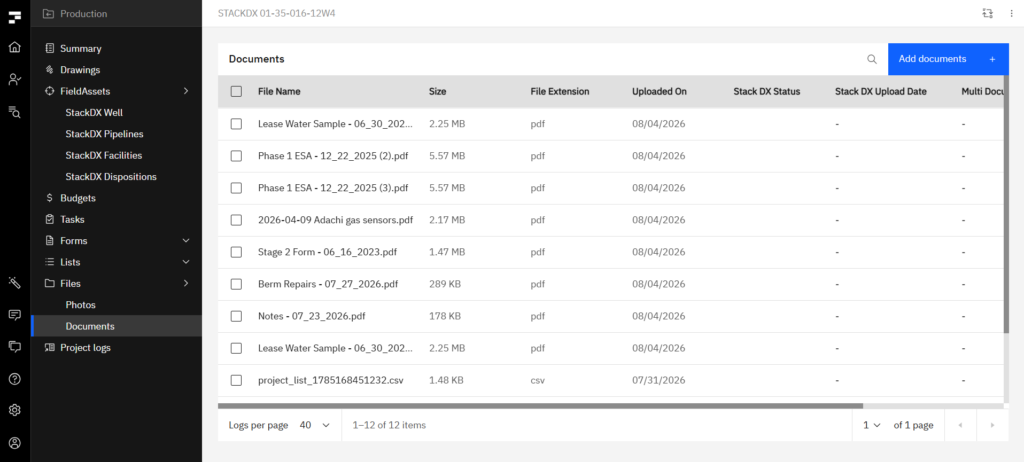
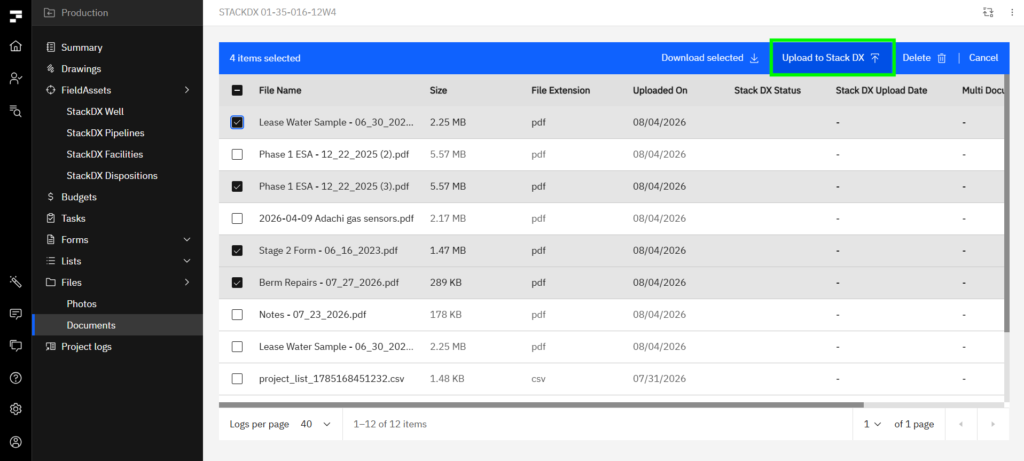
Step 1. Open the Documents tab in Single Project View, under Files.
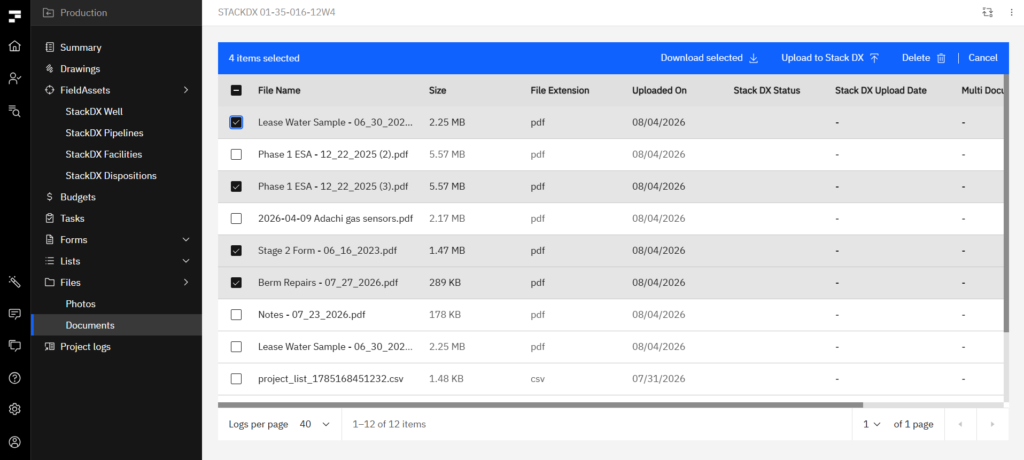
Step 2. Select the documents you want to upload.
Step 3. Click Upload to StackDX in the action bar.
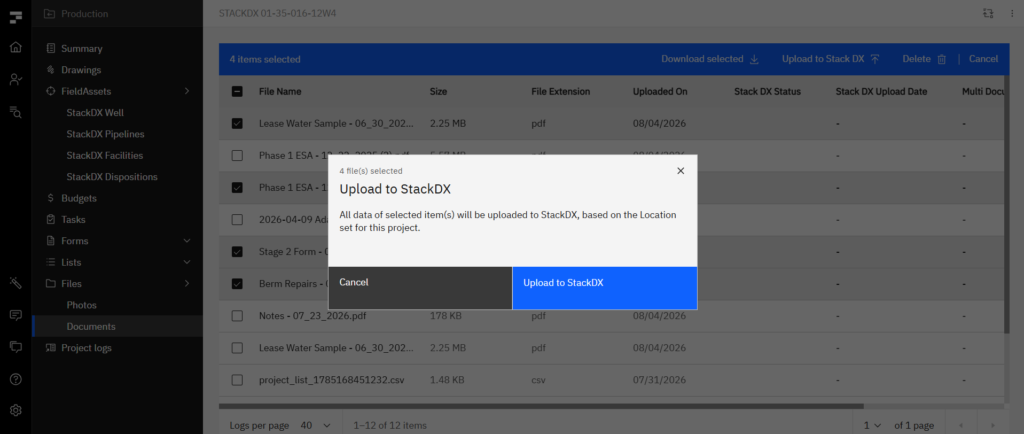
Step 4. Confirm by selecting Upload to StackDX.
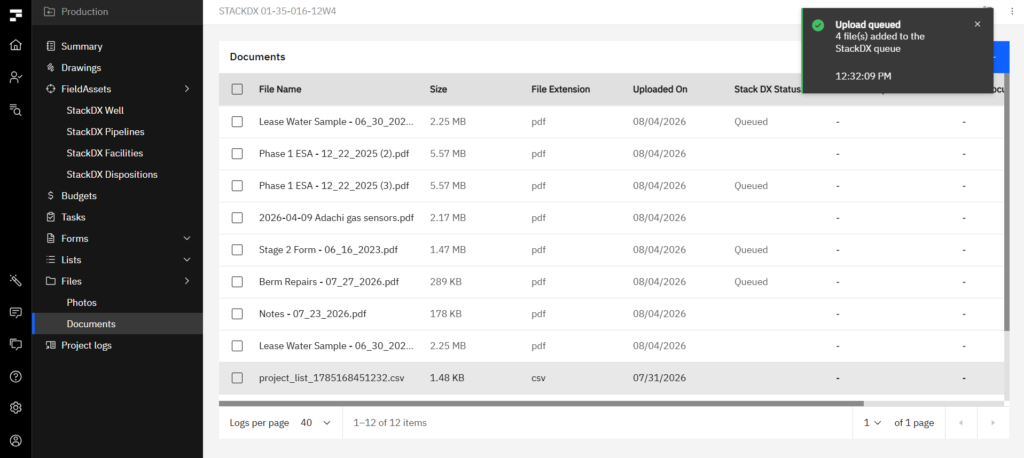
Your documents are queued straight away, and the upload runs in the background while you keep working.
Tracking the upload
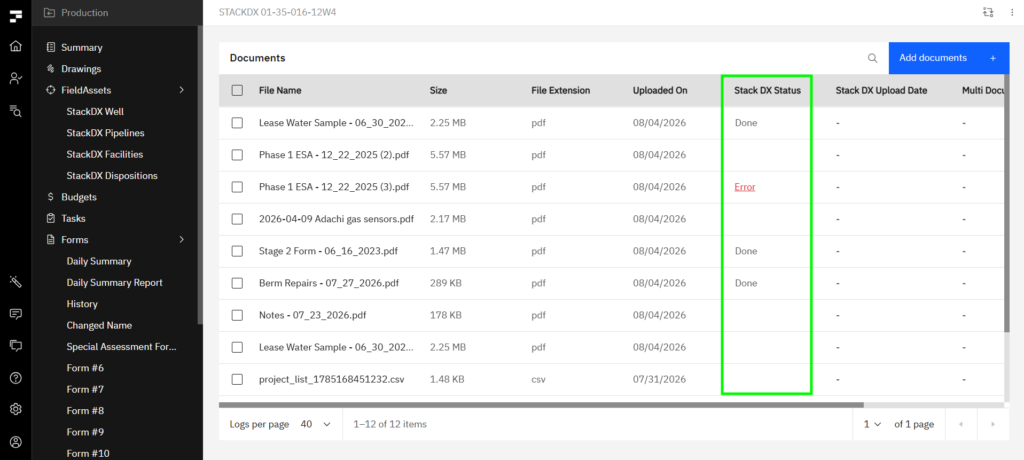
The StackDX Status column shows where each document is.
Status is set per document, not per batch, so one failure does not hide the successes or stop the rest of the queue.
Status
What it means
Queued
Waiting in the upload queue
Uploading
Transferring to StackDX now
Done
Document successfully copied over to StackDX
Error
Check the Location Name, or ensure an environmental folder exists under the surface location in StackDX
Running Fieldshare alongside StackDX and do not have this switched on yet? Get in touch.