Task Groups: Standardize Your Workflow
Environmental teams run complex reporting workflows that repeat the same set of tasks across various projects and clients. The work is largely the same each time, but tracking it as a pile of individual tasks gets fragmented, repetitive, and hard to manage at scale.
Fieldshare’s enhanced Task Groups change that. You build a workflow once in Tasks, assign it to a project, and every task is created, ordered, and routed to the right person automatically. When one task is done, the next person is notified that theirs is ready to start, so work moves from field to office without manual handoffs.
At a Glance
- Task Groups let you define a workflow once and reuse it on every project, so you stop rebuilding the same tasks for the same report across different clients
- Each task carries its own assignee, description, and place in the sequence
- When a task is marked complete, the next person is notified automatically that their work is ready to start
- Tasks now open in a grouped view, with a new Task Group field you can filter and report on
- Built for repeatable field and environmental workflows like Phase 1 ESAs, remediation, and groundwater monitoring programs
What is a Task Group?
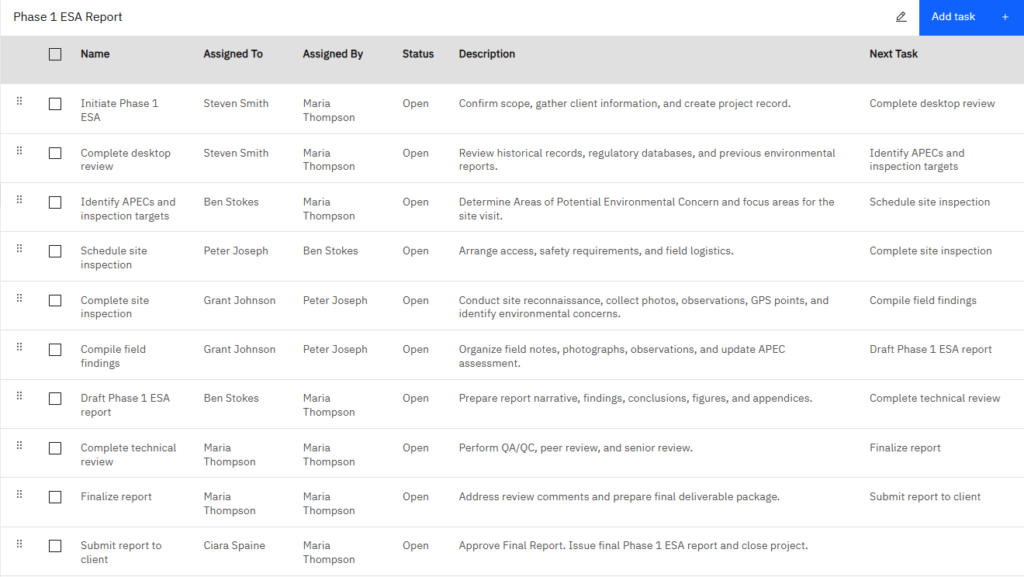
A Task Group is a reusable workflow: a preset sequence of tasks, each with its own assignee, description, and dependencies. You set it up once, assign it to a project, and Fieldshare creates every task in order and routes it to the right person. No rebuilding the same list on each new job.
What is new in the Tasks view?
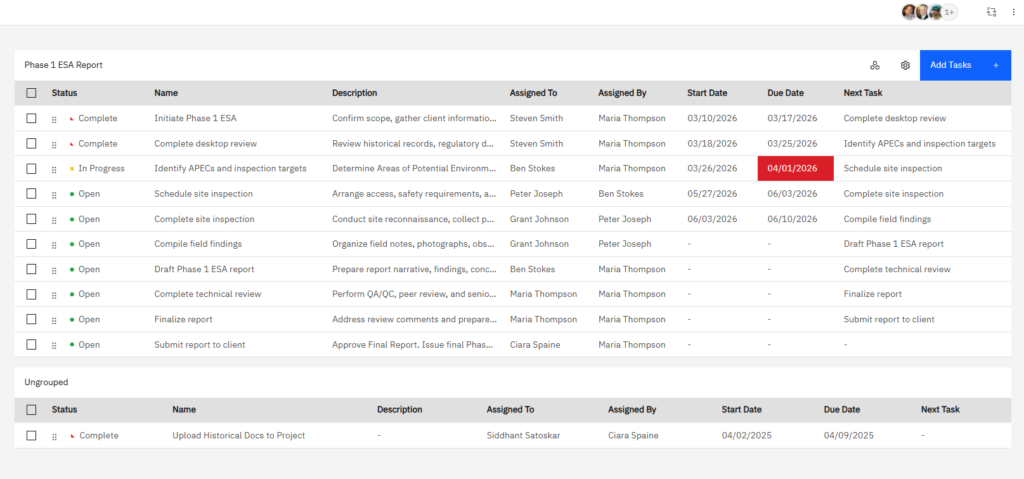
Tasks now default to a grouped view, so you see work organized by workflow instead of as a flat list. A new Task Group field shows which workflow each task belongs to, and you can filter by it for cleaner tracking and reporting.
- In a single project, tasks open in the Grouped Task view by default
- To switch back, click the gear icon and select All Tasks
- The Tasks data table now includes a Task Group field showing which workflow each task belongs to
You can filter by Task Group to track and report on a whole workflow at once
Why We Made This Change
In environmental work, teams run the same workflows again and again across projects and clients. Delivering a final report means coordinating many moving parts, from reviewing site history and scheduling field work to collecting data, analyzing findings, and preparing the deliverable. Managing all of that as one-off tasks is repetitive and hard to scale.
Most teams already run standardized workflows, but still:
- Recreate the same tasks for each new project or client
- Assign the same roles by hand every time
- Rely on manual follow-ups between steps
- Struggle to track progress across programs, not just projects
How do Task Groups work?
You define a workflow once with its tasks, assignees, and dependencies, then assign it to a project. Fieldshare generates every task in sequence and routes each one to the right person. As each task is completed, the next assignee is notified that their work is ready, so handoffs happen without anyone chasing them.
Instead of creating tasks individually each time, you can:
- Pre-define a structured sequence of tasks
- Assign each task to a specific person, or leave it open
- Set dependencies between tasks
- Generate all the tasks with a single click
- Route work to the right people instantly
|
Without Task Groups |
With Task Groups |
|---|---|
|
Rebuild the same task list on every project |
Build the workflow once, reuse it everywhere |
|
Assign the same roles by hand each time |
Assignees are built into the workflow |
|
Manually tell the next person their part is ready |
The next assignee is notified automatically |
|
Track progress project by project |
Track and report across every project by workflow |
|
Hard to see where work stalls |
Filter by Task Group to spot bottlenecks fast |
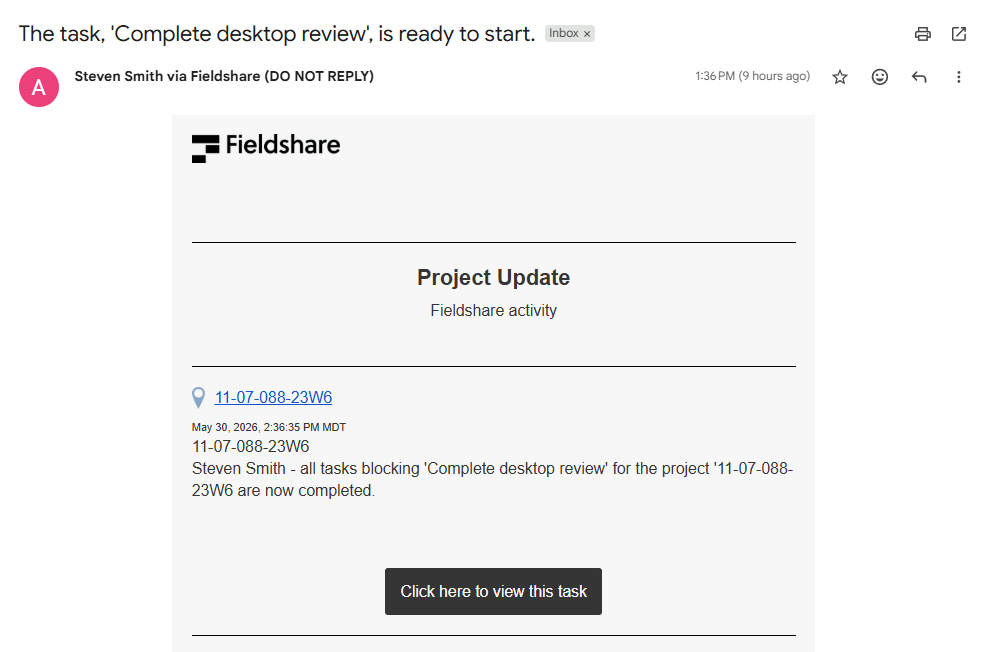
Once a Task Group is assigned to a project, Fieldshare creates all the associated tasks and organizes them into a structured workflow. The handoff runs on the same notifications you already use for deadlines and assignments.
What does this look like for Environmental teams?
Task Groups are designed specifically for environmental consulting and field-based operations where structured processes are critical.
A Phase 1 ESA might run like this:
- Biologists complete soil sampling in the field
- Field staff handle site visits and data collection
- Analysts and engineers review the results
- Project managers compile the data and generate the report
- Reviewers sign off through each approval layer
Each role owns a specific step, and each step depends on the completion of the previous one. Task Groups ensure that this entire chain is automated, traceable, and consistent across every project.
How does grouping improve reporting?
Because every task carries a Task Group field on the data table, you can see which workflow each task belongs to and filter by it with Fieldshare’s Advanced Filter. That lets you report at the program level, track the same workflow across many projects, and spot bottlenecks faster than a project-by-project view allows.
What that gives you:
- Better reporting at the program level
- Easier tracking across multiple projects
- Clearer visibility into workflow performance
- Faster identification of bottlenecks
- A birds-eye view of each program across all clients and projects
How do you set up a Task Group?
Setting up a workflow takes just a few minutes. You create the Task Group, add its tasks in the order they should run, assign each one to a person or role, set any dependencies, then save. After that, launching the whole workflow on any project is a single click.
Build the workflow
- Open a project and go to Tasks, then select Task Groups
- Create a new Task Group and name your workflow, for example Phase 1 ESA Report
- Add your tasks in sequence. For each one, set a description, the assigned user or role, and any dependencies
- Save the workflow
Launch it on a project
- From Single Project view or the Data Table view, select the Task Group
- Create it in one click. Fieldshare generates all the tasks in sequence
- Assign due dates, then move tasks to In Progress as work starts and Complete as it finishes
- Marking a task Complete notifies the next assignee automatically
Frequently Asked Questions
A reusable workflow made of a preset sequence of tasks, each with its own assignee, description, and dependencies. You build it once and assign it to any project, and Fieldshare creates and routes all the tasks to the right people for you.
A Task Group generates an entire workflow in one click, with assignees and order already set. Instead of rebuilding the same list and reassigning roles on every project, you reuse the same structure each time.
Yes. In a single project, click the gear icon in the Tasks view and select All Tasks to return to the traditional flat list. The grouped view is just the new default.
Yes. You can still create and assign individual tasks the same as before. They show up as ungrouped tasks alongside your Task Groups.
When someone marks their task complete, the next assignee is notified automatically that their work is ready to start. No one has to chase for updates or pass work along by hand.
That is the point of Task Groups. Define a workflow once, like a Phase 1 ESA or a groundwater monitoring program, and assign it to as many projects as you need. Every project then follows the same path.
Yes. Filter by the Task Group field to track a workflow across every project it runs on, compare performance, and see where work is stalling.
Set your workflow once, and every project follows the same path. If you are new to Fieldshare, take a look at Tasks or book a demo to see Task Groups in action.